Stan001,
Based on your post at https://forum.dvdfab.cn/d/470957-streamfab-not-truly-shutting-down/16, I decided to take your “crappy temp fix” (as you called it) and expand on it. Using a combination of Gemini and Copilot, I came up with this PowerShell script, which I named C:\Batch\Kill-StreamFab.ps1. All the addresses found in the script can be changed to whatever suits you, such as the log file path and notification wording. Of course you can set up a desktop shortcut using the target line as “C:\Program Files\PowerShell\7\pwsh.exe” -NoLogo -NoProfile -ExecutionPolicy Bypass -File “C:\Batch\Kill-StreamFab.ps1” as shown below.
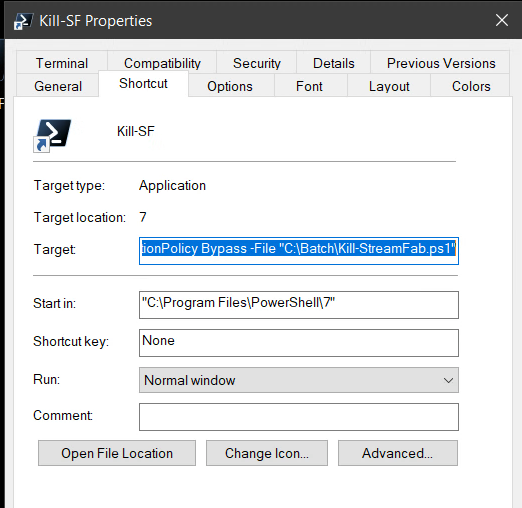
In order for the notification to work properly, the BurntToast module must be installed. Just enter “Install-Module -Name BurntToast” (no quotes) in PowerShell once before running the script, and you are all set.
The script…
Import BurntToast for notifications
Import-Module BurntToast -ErrorAction SilentlyContinue
Log file path
$LogFile = “F:\AFAB_Logs\StreamFab_KillLog.txt”
Timestamp
$Time = Get-Date -Format “yyyy-MM-dd HH:mm:ss”
Check for StreamFab64 process
$process = Get-Process -Name “StreamFab64” -ErrorAction SilentlyContinue
if ($process) {
Kill the process
Stop-Process -Id $process.Id -Force
# Build message
$Message = "$Time - StreamFab64 process terminated."
# Write to log
Add-Content -Path $LogFile -Value $Message
# Toast notification
New-BurntToastNotification -Text "StreamFab Monitor", $Message
}
else {
Build message
$Message = “$Time - StreamFab64 was not running.”
# Write to log
Add-Content -Path $LogFile -Value $Message
# Toast notification
New-BurntToastNotification -Text "StreamFab Monitor", $Message
}